Find a free VPN extension for Microsoft Edge, understand its limits, and choose one with privacy and security in mind.
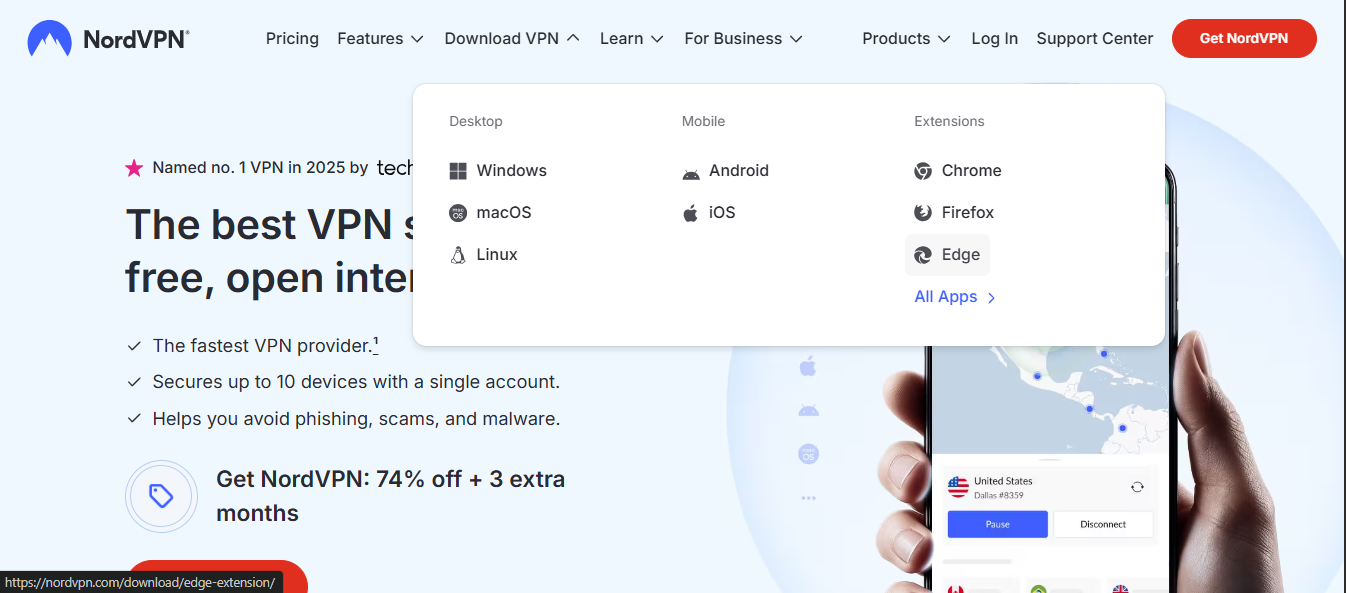
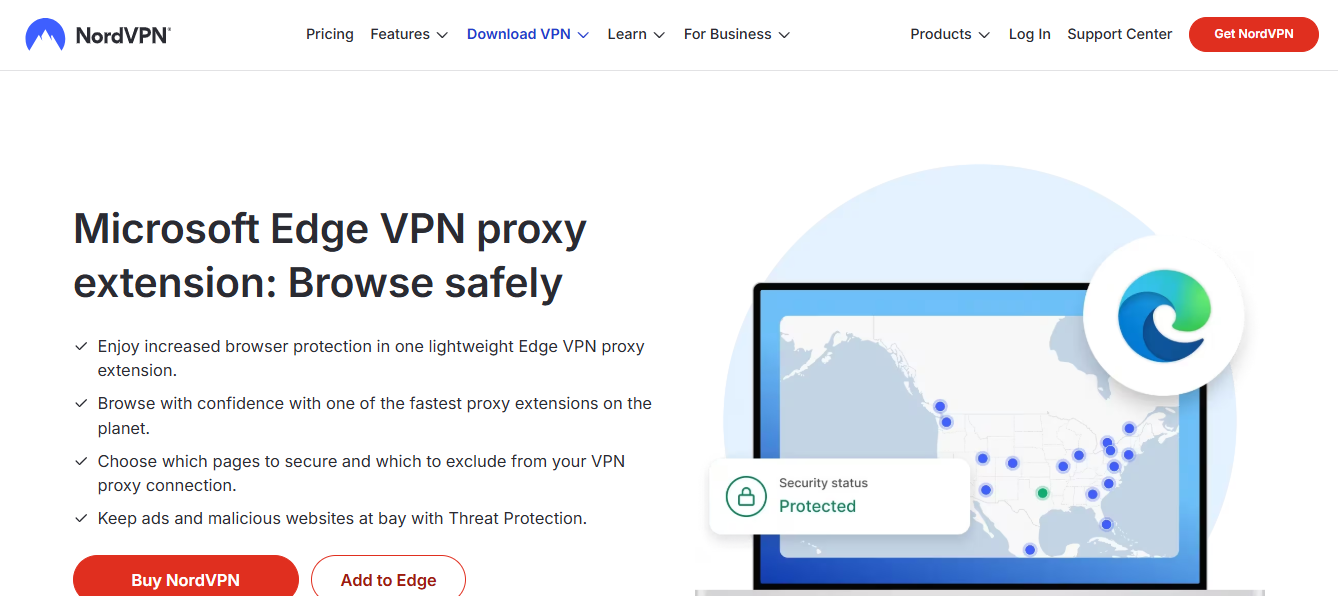
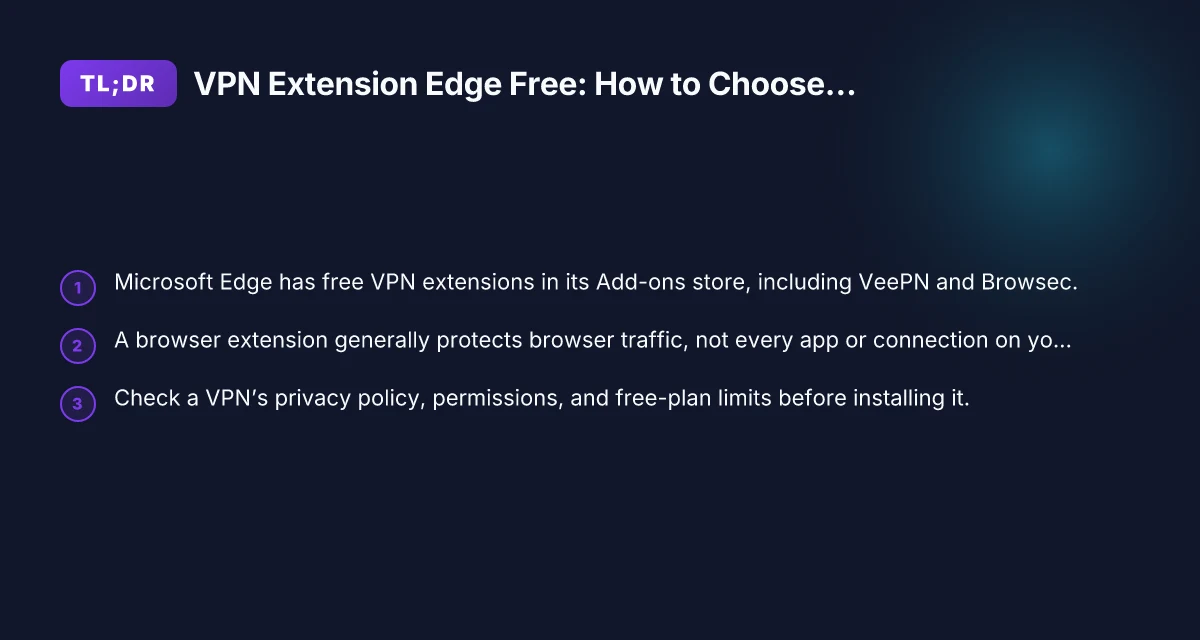
A vpn extension edge free option is available: Microsoft Edge users can install free VPN extensions, including VeePN and Browsec, from the Edge Add-ons store. These extensions can help route browser traffic through a VPN service, but “free” does not automatically mean fully private or suitable for every task. Before installing one, check what it protects, what data the provider may collect, and whether its free version has limits.
Free VPN extension options for Edge
| Option | Edge support | Free access | Coverage | Best for |
|---|---|---|---|---|
| Microsoft Edge Add-ons VPN extensions | Varies by provider | Often limited | Usually browser traffic | Quick setup |
| Windscribe | Supported through its browser extension | Free tier available | Browser traffic | Flexible controls |
| Proton VPN | Browser extension availability varies | Check current plan | Depends on product | Privacy-focused users |
| TunnelBear | Supported through its browser extension | Free tier available | Browser traffic | Simple use |
| Opera VPN | Not an Edge extension | Free | Opera browser only | Opera users |
| Built-in VPN in a security product | Depends on the product | May be limited | Browser or device, depending on setup | Existing subscribers |
Compiled November 2026; check the provider's site for current details.
| VPN | Obfuscation | From / month | Plan | Free plan | Refund | Alipay | UnionPay | Crypto | Website opens in China | Trustpilot | |
|---|---|---|---|---|---|---|---|---|---|---|---|
 Windscribe | Turn on manually Stealth / WStunnel | $5.75/mo | 12 months: $69 | Yes | See site | ✗ | ✗ | ✗ | ✓ | ✗ Blocked | 4.7/5 (13,355 reviews) |
 Proton VPN | Turn on manually Stealth, free plan too | $2.99/mo | 12 months: $35.88 | Yes | 30 days | ✗ | ✗ | ✗ | ✓ | ✗ Blocked | 2.1/5 (1,040 reviews) |
 ZoogVPN | Turn on manually Shadow | $2.49/mo | 27 months: $59.99 | Yes | 7 days | ✓ | ✓ | ✓ | ✓ | Official site blocked; our special link opens (4.4 s) | 4.2/5 (195 reviews) |
 NordVPN | Turn on manually Obfuscated Servers / NordWhisper | $3.49/mo | 27 months: $94.23 | No | 30 days | ? | ✗ | ✓ | ✓ | ✗ Blocked | 4.2/5 (51,628 reviews) |
 ExpressVPN | ✓ On by default all servers | $3.00/mo | 28 months: $84 | No | 30 days | ✗ | ✗ | ✓ | ✗ | ✗ Blocked | 4.4/5 (29,706 reviews) |
 Surfshark | ✓ On by default Camouflage, with OpenVPN | See site | See site | No | 30 days | ✗ | ✗ | ✗ | ✓ | ✗ Blocked | 4.3/5 (31,823 reviews) |
 Astrill VPN | Turn on manually StealthVPN / OpenWeb | $12.50/mo | 24 months: $300 | No | See site | ✗ | ✗ | ✗ | ✓ | ✗ Blocked | 1.3/5 (110 reviews) |
 Private Internet Access | Turn on manually Shadowsocks, OpenVPN only | $2.03/mo | 40 months: $81.2 | No | 30 days | ✗ | ✗ | ✗ | ✗ | ✗ Blocked | 4.2/5 (11,033 reviews) |
 CyberGhost | Turn on manually selected servers | $2.19/mo | 28 months: $61.32 | No | 45 days | ✗ | ✗ | ✗ | ✓ | ✗ Blocked | 4.0/5 (24,178 reviews) |
 PureVPN | Turn on manually switch to OpenVPN | $1.69/mo | 60 months: $101.55 | No | 31 days | ? | ? | ✗ | ✓ | ✗ Blocked | 4.4/5 (17,994 reviews) |
 AdGuard VPN | ✓ On by default TrustTunnel | $2.99/mo | 24 months: $71.76 | Yes | 30 days | ✓ | ✗ | ✓ | ✓ | Official site blocked; our special link opens (3.7 s) | 4.3/5 (290 reviews) |
 Mullvad | Turn on manually QUIC / Shadowsocks / LWO | $5.61/mo | €5/mo | No | 14 days | ✗ | ✗ | ✗ | ✓ | ✗ Blocked | 3.2/5 (192 reviews) |
 StrongVPN | Turn on manually Scramble, OpenVPN TCP | See site | See site | No | 30 days | ✓ | ✗ | ✗ | ✗ | ✗ Blocked | 4.4/5 (2,695 reviews) |
 LightXtreme 闪连 | Not listed | $7.08/mo | 12 months: $84.99 | Yes | 30 days | ✓ | ✓ | ✓ | ✓ | ✓ Yes (3.5 s) | No page |
Prices checked 2026-11-10 on each vendor's pricing page (cheapest long plan, USD). Check the vendor's checkout for the final price.
Obfuscation checked 2026-11-14 on each vendor's site and help center: "on by default" = nothing to set; "turn on manually" = switch protocol or mode in settings; "not listed" = the vendor describes no obfuscation.
Payment methods checked 2026-11-10 on each vendor's payment pages: all 14 take cards and PayPal; ✗ = not listed, ? = the vendor's own pages disagree.
China access: whether the official website opens from mainland China networks (tests the website only, not the VPN connection). Last checked 2026-11-18 01:02 Beijing time.
Trustpilot score and review count checked 2026-11-10.
Is there a free VPN extension for Microsoft Edge?
Yes. Edge Add-ons lists free VPN extensions, and several providers also offer Edge downloads on their own websites. Search results include VeePN’s free VPN extension and Browsec VPN, as well as extensions from VuzeVPN and FreeVPNPlanet.
Edge itself does not provide a built-in free VPN service. Instead, you can add a third-party extension through Microsoft Edge Add-ons. The extension connects your browser to the provider’s service, which may help mask your IP address from websites and protect browser traffic while using a network.
A VPN extension is not necessarily the same as a full VPN app. Depending on how it works, it may cover traffic from Edge only rather than traffic from all apps on your device. If you need device-wide protection, confirm whether the provider offers a separate VPN app and what that app includes.
Free VPN options for Edge
The search results show several services advertising free Edge extensions. Their features and terms may differ, so treat provider claims as a starting point and verify the details on the listing or provider’s site. Nord VPN for PC: How to Download, Install, and Use It
| Option | What the search result says | What to check |
|---|---|---|
| VeePN | Promotes a free Edge extension for private browsing, with claims including no ads, no logs, and unlimited data | Read the current privacy policy and confirm which features apply to the free extension |
| Browsec VPN | Describes its Edge extension as a way to protect your IP and browse privately for free | Check the free plan’s locations, speed, and usage limits |
| VuzeVPN | Advertises unlimited VPN access and help with website access and public Wi-Fi | Review the service’s logging policy, permissions, and plan conditions |
| FreeVPNPlanet | Advertises hiding your IP and access without registration or an account | Confirm how the service handles data and whether any restrictions apply |
The table summarizes the services’ own search-result descriptions. It is not an independent security ranking. Features and policies can change. Look at the current Edge Add-ons listing and provider terms before relying on any promise about data, speed, or privacy.
What to check before choosing a free Edge VPN
| Check | Why it matters | Good sign | Caution |
|---|---|---|---|
| Provider identity | Reveals who operates the service | Established provider with clear contact details | Unknown operator |
| Privacy policy | Explains data collection and use | Clear limits on logging | Vague or missing policy |
| Permissions | Shows what the extension can access | Permissions match its function | Broad access without explanation |
| Free-plan limits | Sets expectations for use | Limits are clearly stated | Restrictions are hard to find |
| Traffic coverage | Clarifies what the VPN protects | Browser-only coverage is disclosed | Implies device-wide protection |
| Independent reviews | Helps assess security claims | Credible, recent audits or reviews | Unsupported security promises |
| Update history | Indicates ongoing maintenance | Recent updates and active support | Abandoned extension |
Compiled November 2026; check the provider's site for current details.
How to install a free VPN extension in Edge
The simplest route is to start in Microsoft’s official Edge Add-ons store. This helps you confirm that you are installing the extension listed for Edge, rather than a similarly named download from an unrelated site. VPN Extension for Edge Free: How to Choose One Safely
- Open Microsoft Edge and go to Edge Add-ons.
- Search for the VPN provider or “VPN.”
- Open the extension’s listing and review its publisher, description, permissions, and privacy information.
- Select the option to get or install the extension, then approve the requested access.
- Open the extension from the Edge toolbar, choose an available connection, and connect.
- Visit a reputable IP-checking site if you want to see whether your browser’s apparent IP address has changed.
You may also find a provider download page through a web search. If you use one, make sure it points to the official provider or Microsoft listing. Avoid installing extensions from unfamiliar download sites, and be cautious if an extension asks for permissions that do not seem necessary for its stated function.
What a free Edge VPN extension can and cannot do
A VPN extension can be useful when you want to route browser activity through a VPN service or make your browser’s public IP address appear different to websites. It may also add a layer of protection when you browse on public Wi-Fi, depending on the service and how the connection is configured.
However, a VPN is not a complete security solution. It does not make you anonymous, prevent every kind of tracking, or guarantee that a website is safe. Websites may still recognize you through account sign-ins, cookies, browser settings, or other identifying details. A VPN also cannot protect information you choose to share directly with a site or service.
Keep these distinctions in mind: Urban VPN Edge Extension: Features, Setup, and Safety
- Extension versus app: An extension may protect only Edge traffic. A device app may cover more of your connection.
- IP masking versus anonymity: Hiding your IP from a website does not erase other ways you can be identified.
- VPN versus antivirus: A VPN does not replace device security tools or safe browsing habits.
- Free access versus unrestricted service: Free plans may have limits or different features from paid plans. Check the current terms rather than assuming.
Edge VPN extension: capability and coverage comparison
| Capability | VPN extension | Device VPN app | What to know |
|---|---|---|---|
| Protects browser traffic | Usually supported | Supported | Confirm the provider’s setup |
| Protects other apps | Usually no | Usually yes | Extension protection is generally browser-only |
| Changes apparent IP address | Usually supported | Supported | Depends on server and connection |
| Encrypts connection to VPN server | Usually supported | Supported | Does not make every website trustworthy |
| Blocks all tracking | No | No | VPNs are not complete anti-tracking tools |
| Prevents phishing | No | No | Use browser protections and safe browsing habits |
| Guarantees anonymity | No | No | Accounts, cookies, and provider data still matter |
| Protects on public Wi-Fi | Browser traffic only | Device traffic | Coverage depends on the product |
Compiled November 2026; check the provider's site for current details.
How to choose safely
A VPN provider handles your connection data, so its privacy practices matter as much as its feature list. Before you install an extension, look beyond short claims such as “secure,” “private,” or “no logs.”
Check the following: EY VPN Connect: How to Access It and What to Do If It Fails
- Privacy policy: Look for clear details about what data is collected, why it is collected, and how long it is retained.
- Permissions: Review what the extension can access. Consider whether those permissions match its purpose.
- Free-plan conditions: Confirm whether the service limits locations, speed, data, or features.
- Provider identity: Make sure the extension’s publisher matches the service you intended to install.
- Support and updates: Check whether the extension appears maintained and whether the provider explains how to get help.
- Security claims: Treat broad claims as claims to verify, not as proof of independent testing.
A high number of downloads or positive reviews can help you compare options, but neither guarantees strong privacy practices. Read recent reviews for practical issues, and consult the provider’s current documentation for the details that matter most.
Recommendation
For a vpn extension edge free choice, start with the Microsoft Edge Add-ons store and compare established listings such as VeePN and Browsec. Choose based on the current privacy policy, permissions, and free-plan terms, not just on claims of unlimited access or complete protection. If you need a VPN for every app on your device, check whether an extension is enough or whether you need a full VPN app.