Learn how to get the NordVPN extension for Microsoft Edge, connect securely, and understand when to use the browser add-on or app.
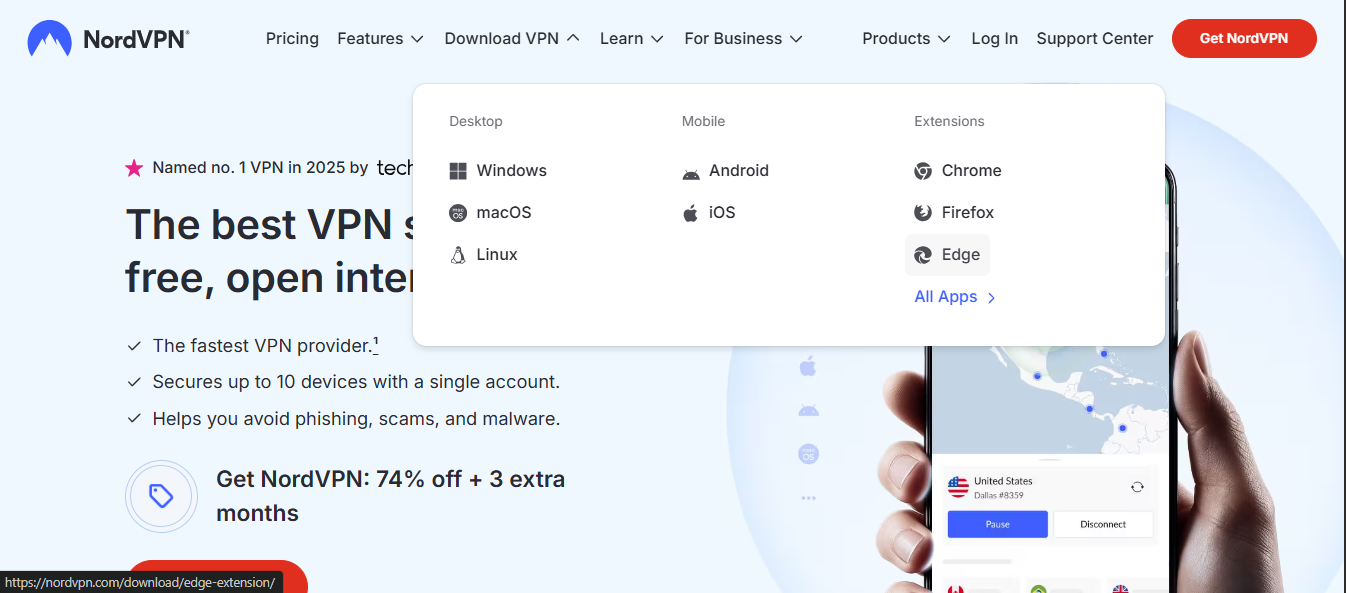
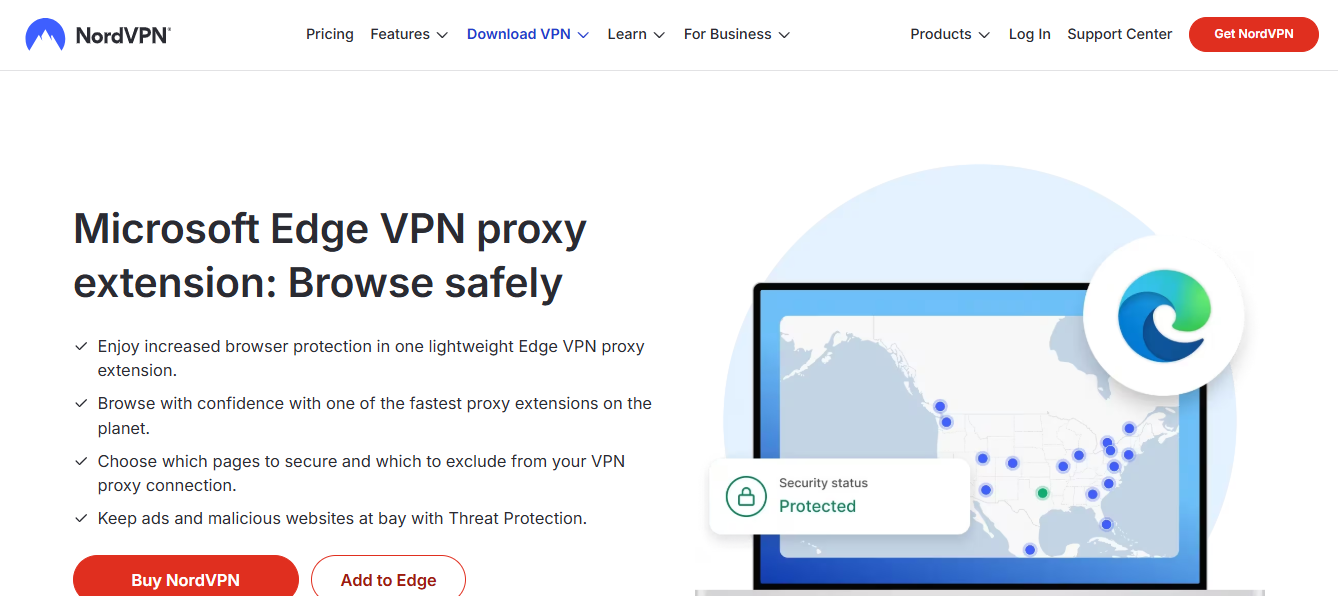
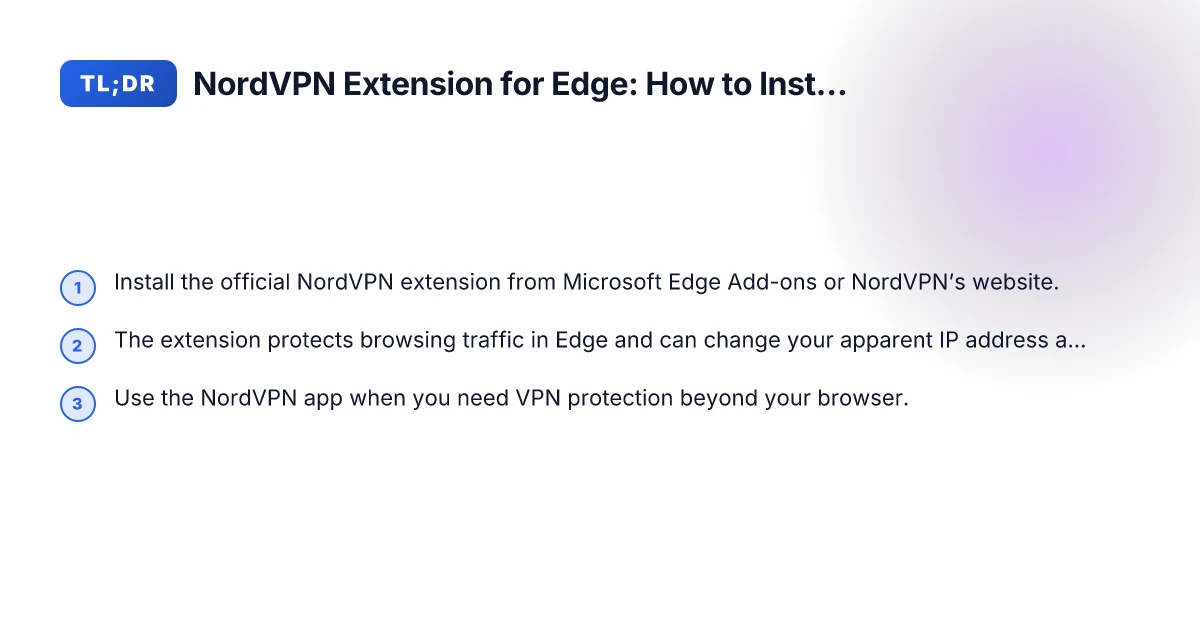
The NordVPN extension for Edge is a browser add-on that helps secure your internet traffic while you browse and changes the IP address websites see. To get started, install the official extension from Microsoft Edge Add-ons, sign in to your NordVPN account, and select Secure my connection. If you need VPN coverage for apps outside Edge, use the NordVPN desktop app instead.
NordVPN Edge extension vs. desktop app
| Feature | Edge extension | Desktop app |
|---|---|---|
| Where it runs | In Microsoft Edge | Across the device |
| What it protects | Browser traffic | Traffic from apps and browsers |
| Setup | Install from Edge Add-ons | Download and install NordVPN app |
| Connection control | From the browser toolbar | From the app |
| Server selection | Choose a VPN server | Choose a VPN server |
| Browser-only use | Supported | Supported |
| Use outside Edge | No | Yes |
| Best for | Protecting Edge browsing | Device-wide VPN protection |
Compiled November 2026; check the provider's site for current details.
| VPN | Obfuscation | From / month | Plan | Free plan | Refund | Alipay | UnionPay | Crypto | Website opens in China | Trustpilot | |
|---|---|---|---|---|---|---|---|---|---|---|---|
 NordVPN | Turn on manually Obfuscated Servers / NordWhisper | $3.49/mo | 27 months: $94.23 | No | 30 days | ? | ✗ | ✓ | ✓ | ✗ Blocked | 4.2/5 (51,628 reviews) |
 ZoogVPN | Turn on manually Shadow | $2.49/mo | 27 months: $59.99 | Yes | 7 days | ✓ | ✓ | ✓ | ✓ | Official site blocked; our special link opens (4.4 s) | 4.2/5 (195 reviews) |
 ExpressVPN | ✓ On by default all servers | $3.00/mo | 28 months: $84 | No | 30 days | ✗ | ✗ | ✓ | ✗ | ✗ Blocked | 4.4/5 (29,706 reviews) |
 Surfshark | ✓ On by default Camouflage, with OpenVPN | See site | See site | No | 30 days | ✗ | ✗ | ✗ | ✓ | ✗ Blocked | 4.3/5 (31,823 reviews) |
 Proton VPN | Turn on manually Stealth, free plan too | $2.99/mo | 12 months: $35.88 | Yes | 30 days | ✗ | ✗ | ✗ | ✓ | ✗ Blocked | 2.1/5 (1,040 reviews) |
 Astrill VPN | Turn on manually StealthVPN / OpenWeb | $12.50/mo | 24 months: $300 | No | See site | ✗ | ✗ | ✗ | ✓ | ✗ Blocked | 1.3/5 (110 reviews) |
 Private Internet Access | Turn on manually Shadowsocks, OpenVPN only | $2.03/mo | 40 months: $81.2 | No | 30 days | ✗ | ✗ | ✗ | ✗ | ✗ Blocked | 4.2/5 (11,033 reviews) |
 CyberGhost | Turn on manually selected servers | $2.19/mo | 28 months: $61.32 | No | 45 days | ✗ | ✗ | ✗ | ✓ | ✗ Blocked | 4.0/5 (24,178 reviews) |
 PureVPN | Turn on manually switch to OpenVPN | $1.69/mo | 60 months: $101.55 | No | 31 days | ? | ? | ✗ | ✓ | ✗ Blocked | 4.4/5 (17,994 reviews) |
 AdGuard VPN | ✓ On by default TrustTunnel | $2.99/mo | 24 months: $71.76 | Yes | 30 days | ✓ | ✗ | ✓ | ✓ | Official site blocked; our special link opens (3.7 s) | 4.3/5 (290 reviews) |
 Mullvad | Turn on manually QUIC / Shadowsocks / LWO | $5.61/mo | €5/mo | No | 14 days | ✗ | ✗ | ✗ | ✓ | ✗ Blocked | 3.2/5 (192 reviews) |
 Windscribe | Turn on manually Stealth / WStunnel | $5.75/mo | 12 months: $69 | Yes | See site | ✗ | ✗ | ✗ | ✓ | ✗ Blocked | 4.7/5 (13,355 reviews) |
 StrongVPN | Turn on manually Scramble, OpenVPN TCP | See site | See site | No | 30 days | ✓ | ✗ | ✗ | ✗ | ✗ Blocked | 4.4/5 (2,695 reviews) |
 LightXtreme 闪连 | Not listed | $7.08/mo | 12 months: $84.99 | Yes | 30 days | ✓ | ✓ | ✓ | ✓ | ✓ Yes (3.5 s) | No page |
Prices checked 2026-11-10 on each vendor's pricing page (cheapest long plan, USD). Check the vendor's checkout for the final price.
Obfuscation checked 2026-11-14 on each vendor's site and help center: "on by default" = nothing to set; "turn on manually" = switch protocol or mode in settings; "not listed" = the vendor describes no obfuscation.
Payment methods checked 2026-11-10 on each vendor's payment pages: all 14 take cards and PayPal; ✗ = not listed, ? = the vendor's own pages disagree.
China access: whether the official website opens from mainland China networks (tests the website only, not the VPN connection). Last checked 2026-11-18 01:02 Beijing time.
Trustpilot score and review count checked 2026-11-10.
What the NordVPN Edge extension does
A VPN browser extension works as a proxy for browser traffic. NordVPN’s Edge extension is designed to protect your activity in Microsoft Edge and let you connect through a different virtual location. This can help when you want more privacy while browsing or need websites to see an IP address associated with another location.
The extension is browser-focused. It should not be treated as protection for every connection on your computer: traffic from other browsers and desktop applications may not go through it. For broader device coverage, NordVPN also offers a desktop app.
A browser extension can be convenient if you mainly want to protect activity in Edge. It is also quick to control from the browser toolbar, without opening a separate application each time you browse.
How to install NordVPN on Microsoft Edge
Use an official source to avoid confusing the legitimate add-on with unrelated or unofficial extensions. VPN Extension for Microsoft Edge: How to Choose and Use One
- Open the NordVPN Edge extension page on the official NordVPN website, or find NordVPN in Microsoft Edge Add-ons.
- Select the option to add the extension to Edge.
- Review the permissions requested by the browser and confirm the installation if you want to proceed.
- Open the extension from Edge’s toolbar. If it is not visible, check the browser’s extensions menu and pin it for easier access.
- Sign in with your NordVPN account.
Once installation is complete, you can connect from the extension. NordVPN’s support instructions describe selecting Secure my connection to connect. The exact interface may vary as the extension is updated.
Check that it is the official extension
Search results can include old posts, videos, and discussions that may not reflect the current extension or its current status. To reduce the risk of installing the wrong add-on:
- Use the NordVPN website’s Edge download link or the official Microsoft Edge Add-ons listing.
- Check that the publisher is NordVPN before installing.
- Avoid extensions promoted through unfamiliar download pages or unsolicited links.
- If Edge displays a security warning, pause and verify the listing and publisher rather than dismissing the warning automatically.
How to connect and use it
After signing in, open the NordVPN extension from the Edge toolbar and select Secure my connection. The extension will establish a connection, after which your browsing traffic through Edge is routed according to the extension’s VPN proxy service.
If the extension offers a choice of location, select the location that suits your needs. A nearby location may be a practical choice for everyday browsing, while another location can be useful when you want websites to see a different virtual location. Site access can depend on the website’s own policies and may not work identically in every case. Free VPN for Edge Extension: What to Choose and How to Use It
When you finish, open the extension again and disconnect if you no longer want to use the VPN connection. You can also check the extension’s connection status before browsing, especially after restarting Edge or signing out.
If connection fails, try these basic checks:
- Confirm that you are signed in and that your account is active.
- Check your internet connection outside the extension.
- Close and reopen Edge, then try connecting again.
- Update the extension and Edge if updates are available.
- Consult NordVPN’s official support guidance if the issue continues.
NordVPN Edge extension setup and use
| Step | Action | What to look for | If it does not work |
|---|---|---|---|
| 1. Find the extension | Open Edge Add-ons | NordVPN listing | Check the publisher |
| 2. Install | Select Get or Add | Extension added to Edge | Retry or check Edge settings |
| 3. Open it | Select the NordVPN icon | Sign-in screen or controls | Pin the icon to the toolbar |
| 4. Sign in | Use your Nord Account | Account access | Check credentials and subscription |
| 5. Connect | Select a server or quick connect | Connected status | Try another server |
| 6. Browse | Keep the extension connected | VPN protection for Edge traffic | Check the connection status |
| 7. Disconnect | Use the extension controls | Disconnected status | Reopen the extension |
Compiled November 2026; check the provider's site for current details. Free VPN Edge Extension: How to Choose One for Microsoft Edge
Extension or desktop app: which should you use?
The right option depends on what you want to protect. The extension is focused on browsing in Edge, while a desktop VPN app is the better fit when you want protection for more than one browser or for other internet-connected applications.
| Option | Best suited to | Coverage |
|---|---|---|
| NordVPN Edge extension | People who want to manage VPN protection from Edge | Browser traffic in Edge |
| NordVPN desktop app | People who want VPN protection beyond one browser | Device traffic according to the app’s settings |
The extension is convenient for browser-only use. The desktop app provides a broader option for a computer, though its coverage and behavior depend on the app’s settings. If you use both, check how each is configured so you understand which connection is handling your traffic.
Privacy, permissions, and troubleshooting
Before installing any browser add-on, review its publisher and the permissions Edge displays. Browser extensions may need access to browsing-related information to perform their functions. Only install the NordVPN add-on from an official source, and keep it updated through Edge.
Remember that a VPN changes how your traffic is routed and the IP address websites may see. It does not make you anonymous or guarantee that every online activity is private. Websites can still use account details, cookies, browser settings, and other signals to recognize or track activity. Continue to use strong passwords and be thoughtful about what you share online. VPN Extension Edge Free: How to Choose and Use One
If a website behaves unexpectedly while the extension is connected, try reconnecting or selecting a different available location. If the extension appears to be connected but browsing still fails, test the connection in another tab and consult NordVPN support for current troubleshooting steps.
Privacy and troubleshooting checks
| Check | What to review | Why it matters | Next step |
|---|---|---|---|
| Permissions | Access requested by the extension | Shows what browser access it needs | Review before installing |
| Publisher | Official NordVPN listing | Helps avoid look-alike extensions | Install from Edge Add-ons |
| Account status | Sign-in and subscription access | Required to use the service | Confirm account details |
| Connection status | Connected indicator in the extension | Confirms the VPN is active for Edge | Reconnect if needed |
| Browser scope | Edge traffic versus other device traffic | Extension protection is browser-focused | Use the desktop app for device-wide coverage |
| Conflicting tools | Other VPNs or proxy settings | May interfere with a connection | Temporarily disable and retest |
| Extension updates | Current version in Edge | Updates can fix issues | Check for available updates |
| Recommendation | Choose based on coverage needed | Browser-only and device-wide use differ | Use extension for Edge; app for whole-device use |
Compiled November 2026; check the provider's site for current details.
Recommendation
For VPN protection while browsing in Microsoft Edge, install the official NordVPN extension from Microsoft Edge Add-ons or NordVPN’s website, sign in, and connect with Secure my connection. Choose the desktop app instead when you need VPN coverage for activity beyond Edge. Nord VPN for PC: How to Download, Install, and Use It